Introduction
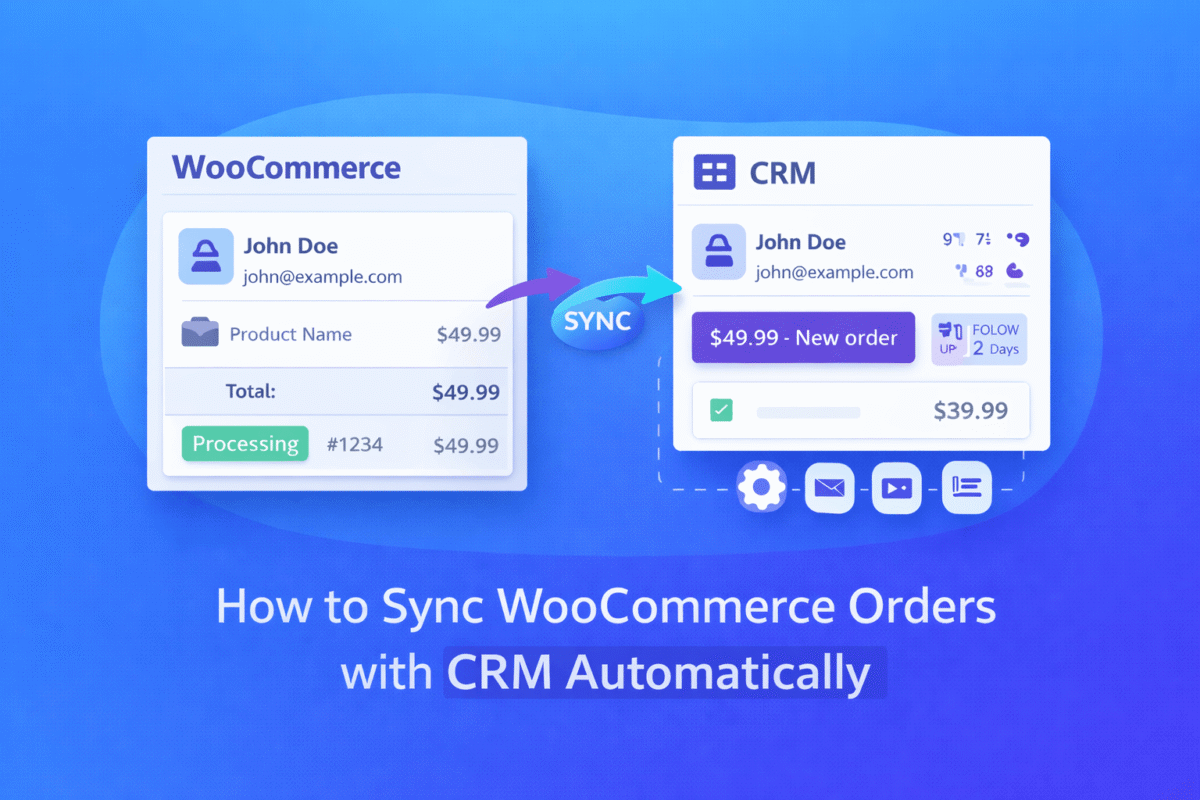
If your WordPress API integration is not working, you’re not alone. Many website owners face issues when connecting WordPress with third-party services like CRMs, payment gateways, or external applications.
Whether you’re using a custom WordPress plugin API or a third-party integration, even a small misconfiguration can break the connection.
In this guide, we’ll walk you through the most common problems and how to fix them step by step.
Common Reasons Why WordPress API Integration Fails
Here are the most common causes of WordPress API errors:
1. Incorrect API Endpoint
Using the wrong API URL or route can prevent your request from reaching the server.
2. Authentication Issues
Invalid or expired API keys, tokens, or OAuth credentials can block access.
3. Server Blocking Requests
Firewalls, hosting restrictions, or CORS policies may block API calls.
4. Wrong Data Format
Sending incorrect JSON or malformed data can cause failures.
5. Timeout or Slow API Response
Slow external APIs may result in request timeouts.
Step-by-Step Guide to Fix WordPress API Issues
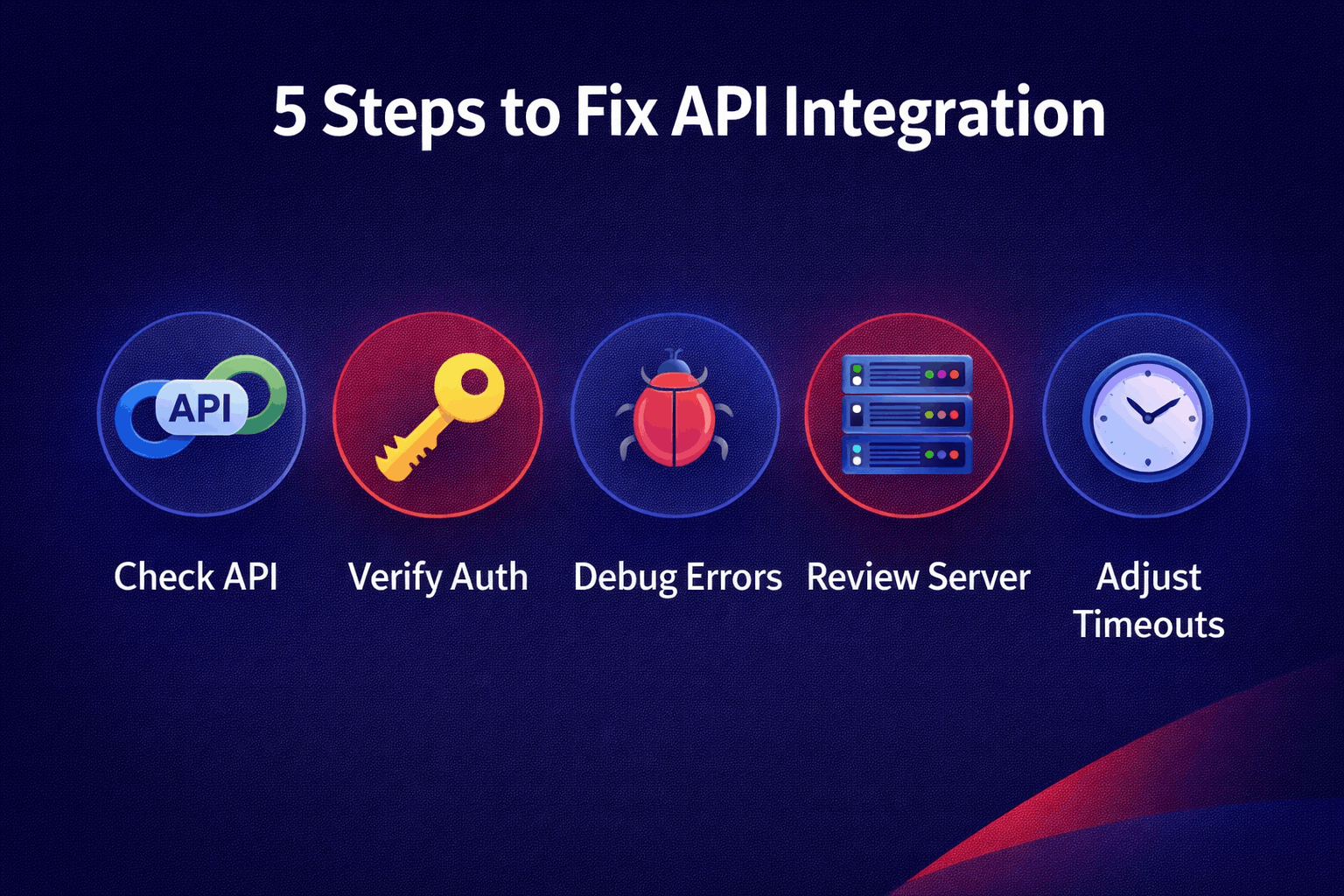
Step 1: Check API Endpoint
Make sure your API URL is correct.
- Double-check base URL and route
- Test using tools like Postman or browser
- Ensure HTTPS is used if required
Step 2: Verify API Key or Token
Authentication is critical.
- Confirm API key is correct
- Check if token is expired
- Ensure proper headers are sent
Example:
Authorization: Bearer YOUR_API_KEY
Step 3: Debug API Response
Always inspect the response from the API.
print_r($response);
This helps identify:
- Error messages
- Status codes
- Missing data
Step 4: Enable WordPress Debug Mode
Turn on debugging to see hidden errors.
define('WP_DEBUG', true);
You can also enable logging:
define('WP_DEBUG_LOG', true);
Step 5: Check Server Logs
Look into error logs for deeper issues.
/wp-content/debug.log- Hosting control panel logs
This helps detect:
- PHP errors
- Server restrictions
- Timeout issues
Best Practices for WordPress API Integration
To avoid future issues:
- Always validate API responses
- Use
try/catchfor error handling - Set proper timeouts
- Log API requests and responses
- Sanitize and validate data before sending
When to Use a Custom WordPress Plugin API
If your integration is complex or keeps failing, consider building a custom WordPress plugin API.
Benefits:
- Full control over logic
- Better performance
- Secure data handling
- Scalable integration
Conclusion
Fixing a WordPress API integration not working issue is usually a matter of debugging step by step.
By checking endpoints, authentication, server settings, and logs, you can quickly identify and resolve the problem.
Call to Action
If you need help with WordPress API integration services or building a custom WordPress plugin API, feel free to reach out. I can help you build reliable and scalable integrations tailored to your needs.