Running a WooCommerce store is not just about getting orders.
You also need to manage customer data, follow-ups, and sales pipelines. But doing this manually takes time and creates mistakes.
Many store owners face this problem:
- Orders stay in WooCommerce
- Customer data is not in CRM
- Sales team has no visibility
This is where automation helps.
In this guide, you will learn how to sync WooCommerce orders with CRM automatically, so your data stays updated without manual work.
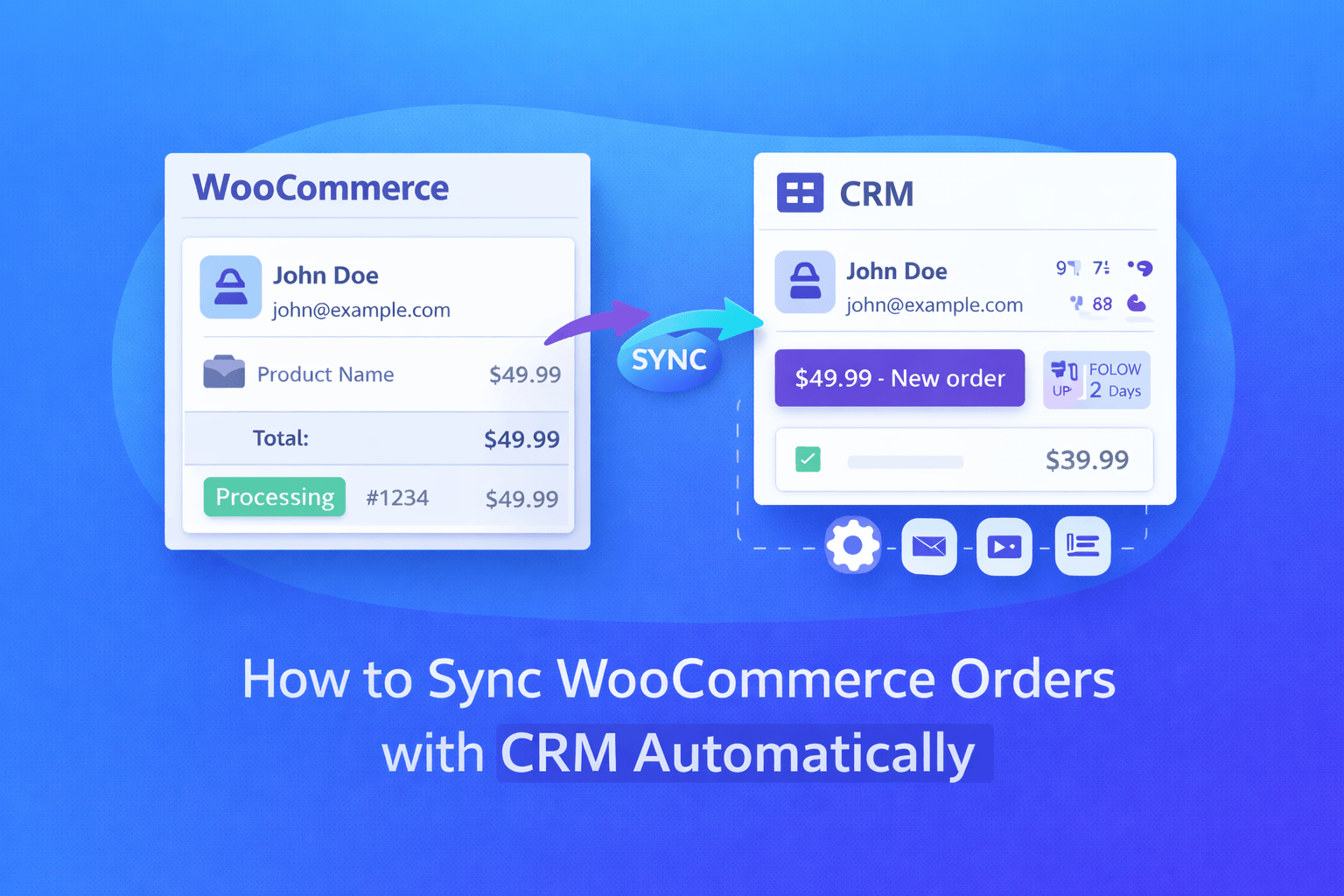
- WooCommerce → CRM flow diagram
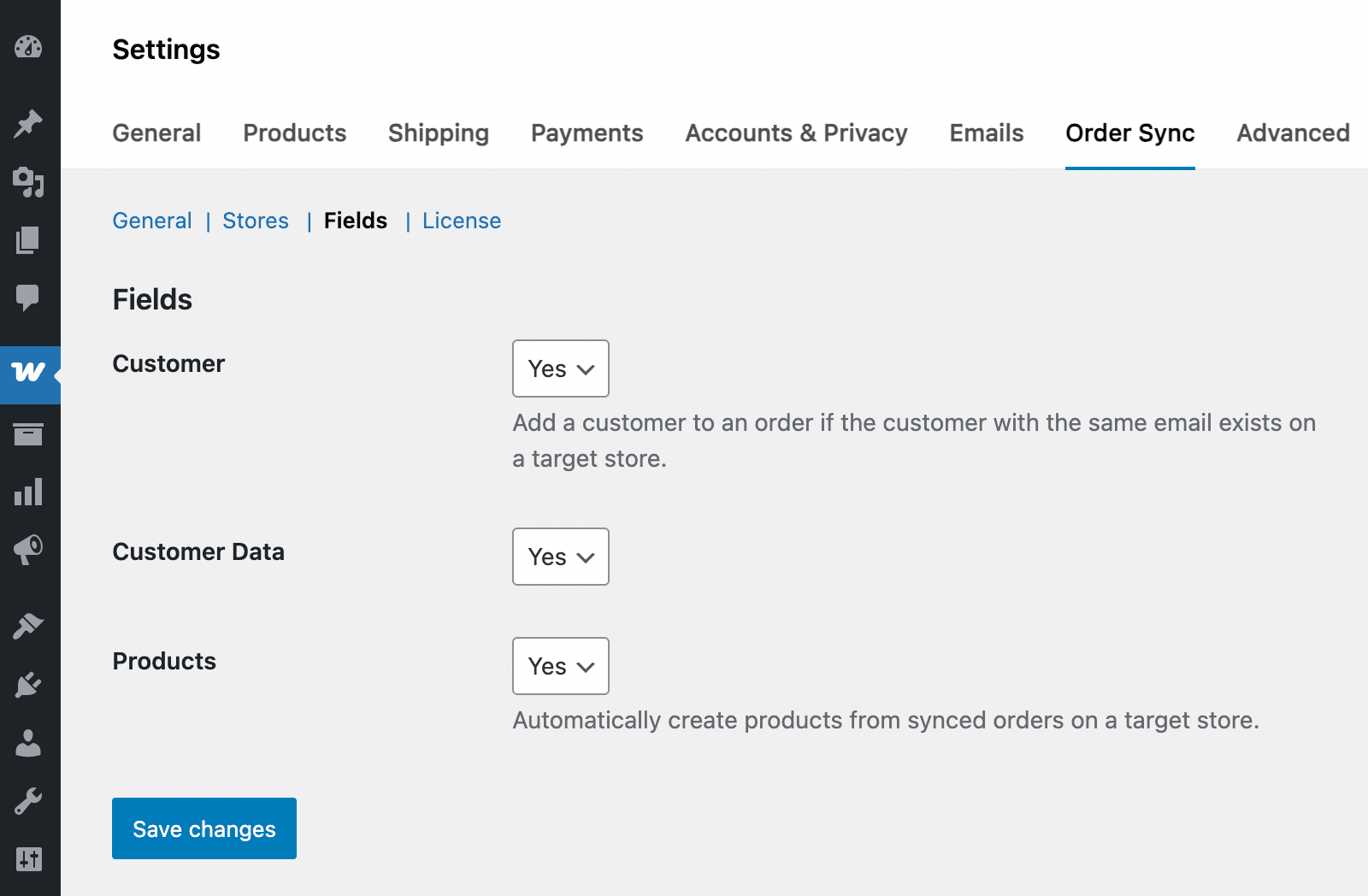
- Order sync automation UI
- Dashboard showing synced customer data
Why You Should Sync WooCommerce with CRM
When your store and CRM are connected, your work becomes easier.
Key Benefits
- No manual data entry
- Better customer tracking
- Faster follow-ups
- Improved sales process
- Centralized data
Real Example
You receive an order.
Without sync:
- You copy data manually
- You may miss follow-up
With sync:
- Order goes to CRM instantly
- Sales team gets notified
- Follow-up starts automatically
What Data Gets Synced?
When you connect WooCommerce with CRM, you can sync:
- Customer name and email
- Order details
- Products purchased
- Order value
- Coupon usage
- Order status
Ways to Sync WooCommerce Orders with CRM
There are mainly 3 ways to do this.
1. Using a Plugin
This is the easiest method.
You can use plugins that connect WooCommerce with CRM tools like:
How It Works
- Install plugin
- Connect CRM account
- Map fields
- Enable auto sync
👉 Done. Orders will sync automatically.
2. Using Webhooks
WooCommerce provides webhooks to send data when an event happens.
Example
When an order is created:
- WooCommerce sends data
- CRM receives it
- Record is created
This method is useful for developers.
3. Custom API Integration
This is for advanced use.
You can:
- Use WooCommerce REST API
- Send data to CRM API
- Build custom logic
Step-by-Step: Automatic Sync Using Plugin
Here’s a simple flow:
Step 1: Install CRM Integration Plugin
Choose a plugin based on your CRM.
Step 2: Connect Your CRM Account
Login and authorize connection.
Step 3: Map Fields
Example:
- Woo Email → CRM Email
- Order Total → Deal Value
Step 4: Enable Auto Sync
Turn on real-time or event-based sync.
FAQ
Can I sync WooCommerce orders in real-time?
Yes, most plugins support real-time sync when an order is placed.
Which CRM works best with WooCommerce?
Popular options include Zoho, HubSpot, and Pipedrive.
Do I need coding for this?
No, plugins make it easy without coding.
Can I sync old orders also?
Yes, many plugins support historical data sync.
Is it safe to connect WooCommerce with CRM?
Yes, if you use trusted plugins and secure APIs.