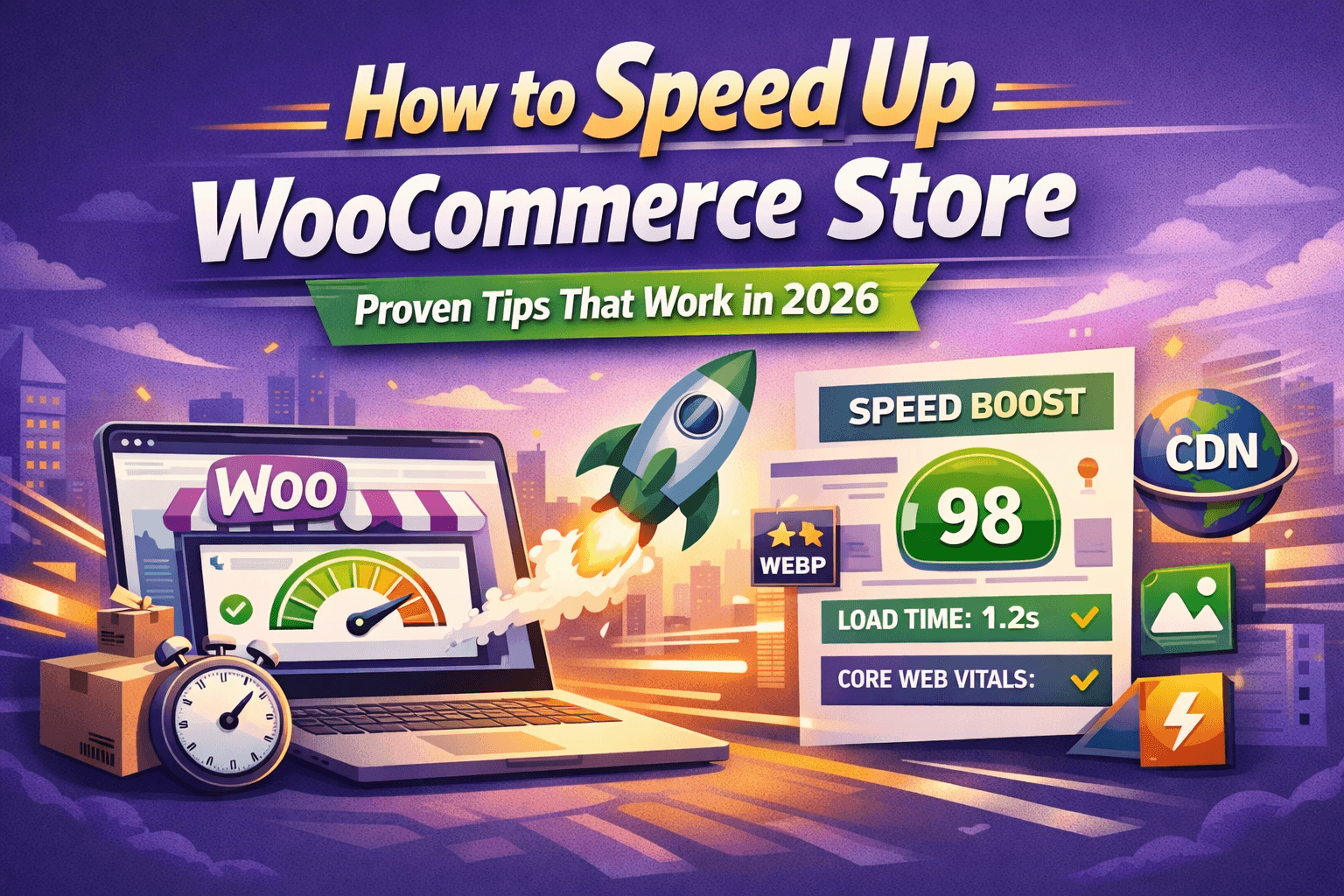
15 Proven Fixes to Boost Performance, Rank Higher & Sell More
To speed up a WooCommerce store in 2026: upgrade to cloud/managed hosting with PHP 8.2+, enable Redis object caching, use a CDN (Cloudflare or BunnyCDN), convert images to WebP with lazy loading, minify CSS/JS, and clean your database monthly. These steps reduce load times by 50–80% and directly improve Core Web Vitals scores — a confirmed Google ranking factor.
Why Your WooCommerce Store Speed Is Killing Your Sales
Every second your WooCommerce store takes to load, you are losing money. That is not an exaggeration — it is backed by data. Research consistently shows that a one-second delay in page load time reduces conversions by up to 7%, and 53% of mobile users abandon any site that takes more than 3 seconds to load. In highly competitive niches, slow sites simply do not survive.
WooCommerce is the world’s most popular eCommerce platform — powering over 5 million active stores — but its power comes with a trade-off: out of the box, it can be heavy. Between WordPress’s core overhead, product catalog queries, cart fragments, payment gateway scripts, and plugin conflicts, your store can easily balloon into a sluggish experience that frustrates shoppers and tanks your Google rankings.
The good news? Every single one of these performance problems is fixable. This guide covers 15 proven, actionable fixes — from infrastructure decisions to code-level tweaks — that will transform your slow WooCommerce store into a fast, conversion-optimized machine in 2026.
What You Will Achieve
After implementing the strategies in this guide, your store can: load in under 2 seconds on desktop, pass Google Core Web Vitals (LCP, INP, CLS), reduce cart abandonment, improve organic search rankings, and appear in AI search answers on ChatGPT, Gemini, and Perplexity.
Why Is My WooCommerce Store So Slow? (Root Causes)
Before jumping into fixes, it helps to understand what is actually slowing your store down. Most WooCommerce performance problems trace back to one or more of the following root causes:
| Root Cause | Impact & Explanation |
| Shared / Budget Hosting | Insufficient CPU, RAM, and SATA SSDs create bottlenecks under real traffic. Most shared hosts lack Redis, NVMe, or LiteSpeed. |
| No Caching or Mis-configured Cache | Without caching, WordPress regenerates every page from scratch on each visit — massively wasteful. |
| Unoptimized Product Images | Large JPEG/PNG files are the #1 cause of slow page loads on category and product pages. |
| Too Many Plugins / Plugin Bloat | Each plugin adds HTTP requests, database queries, and JS/CSS files — even on pages where it is not needed. |
| AJAX Cart Fragments | WooCommerce fires an AJAX request on every single page load to update the cart counter, even for non-logged-in users. |
| Unoptimized Database | Orders, transients, sessions, and post revisions accumulate rapidly and slow down every query. |
| Render-Blocking JS/CSS | Scripts that load in the <head> prevent the browser from rendering page content until they finish downloading. |
| No CDN | Serving all assets from a single origin server adds latency for visitors far from your data center. |
| Outdated PHP Version | PHP 7.4 is up to 20% slower than PHP 8.2+ on equivalent hardware. |
| Too Many Product Variations | Hundreds of variation combinations trigger excessive database queries and slow product page loads. |
2026 Performance Benchmarks: What You Should Be Targeting
Before you optimize, you need to know what good looks like. Use these benchmarks as your targets for 2026:
| Metric | Good | Needs Work |
| Total Page Load Time | < 2 seconds | > 3 seconds |
| LCP (Largest Contentful Paint) | < 2.5 seconds | > 4 seconds |
| INP (Interaction to Next Paint) | < 200ms | > 500ms |
| CLS (Cumulative Layout Shift) | < 0.1 | > 0.25 |
| Time to First Byte (TTFB) | < 200ms | > 600ms |
| PageSpeed Insights Score (Mobile) | > 75 | < 50 |
| Total Page Weight | < 2 MB | > 5 MB |
Recommended Testing Tools
Google PageSpeed Insights (pagespeed.web.dev) — Core Web Vitals analysis and actionable recommendations GTmetrix (gtmetrix.com) — Waterfall analysis showing what loads and when WebPageTest (webpagetest.org) — Multi-location testing with filmstrip comparison Query Monitor (WordPress plugin) — Database query profiling, hook timing, and PHP memory usage Always test your homepage, a category page, a product page, AND the checkout page — these are the four critical pages in your shopping funnel.
15 Proven Fixes to Speed Up Your WooCommerce Store in 2026
Fix 1 — Upgrade to WooCommerce-Optimized Cloud Hosting
Your hosting is the foundation of everything. No amount of plugin-level optimization can compensate for an underpowered server. If you are on a $5–$10/month shared hosting plan, this single upgrade will deliver the biggest performance improvement of any fix on this list.
What to look for in 2026 WooCommerce hosting:
• PHP 8.2+ support (PHP 8.2 is 15–20% faster than PHP 7.4)
• Redis object caching (dramatically faster than Memcached for WooCommerce)
• NVMe SSD storage (faster I/O than traditional SATA SSDs)
• LiteSpeed or NGINX web server
• Cloudflare Enterprise CDN integration (available on Kinsta, Cloudways, Rocket.net)
• Minimum 2 CPU cores and 4 GB RAM for stores with 100+ products
Top managed WooCommerce hosting providers in 2026:
| Provider | Key Advantage |
| Kinsta | Google Cloud + Cloudflare Enterprise + Redis — premium managed experience |
| Cloudways | Flexible cloud infrastructure (AWS, GCP, DigitalOcean) + Redis + NVMe |
| Rocket.net | Cloudflare Enterprise + 32 CPU + 128 GB RAM + NVMe — top raw performance |
| WP Engine | Fully managed, proprietary EverCache system, developer-friendly staging |
| SiteGround | In-house SG Optimizer, good for smaller stores with global CDN |
Fix 2 — Enable and Properly Configure Caching
Caching is the single most impactful software-level optimization for WooCommerce. When done correctly, caching stores pre-built HTML versions of your pages so WordPress does not regenerate them on every visit — reducing load times by 60–80% for repeat visitors.
WooCommerce has specific caching rules you must follow:
• NEVER cache the cart, checkout, or My Account pages — these must remain dynamic
• Use fragment caching to keep the mini-cart widget dynamic while caching the rest of the page
• Enable Redis object caching for database query results — this is separate from page caching
• Set up cache preloading so the cache is warm before users arrive
• Configure cache purging rules: when a product’s stock changes, its cached page must be refreshed
| Caching Plugin | Best For |
| WP Rocket | Best overall WooCommerce caching — auto-excludes dynamic pages, built-in JS deferral and lazy loading |
| LiteSpeed Cache | Best if your host runs LiteSpeed server — server-level caching with full-page and object cache |
| FlyingPress | Lightweight alternative with smart WooCommerce detection and excellent Core Web Vitals scores |
| NitroPack | All-in-one managed optimization (caching + CDN + image optimization) — great for non-technical users |
| W3 Total Cache | Free option with Redis integration — requires more manual configuration |
Fix 3 — Set Up a Content Delivery Network (CDN)
A CDN serves your static assets — images, CSS, JavaScript, fonts — from servers physically located close to each visitor. For a customer in Mumbai loading your store hosted in the US, a CDN can cut load times by 40–60% for those assets.
• Cloudflare Free Tier: DNS-level CDN with basic caching and DDoS protection — works for most small stores
• Cloudflare API ($5/month): Full-page caching at the Cloudflare edge specifically built for WordPress — dramatic speed improvements
• BunnyCDN ($1/month+): Pay-as-you-go pricing, excellent performance per dollar, integrates easily with most caching plugins
• KeyCDN: Developer-friendly, affordable, with real-time analytics
Pro Tip: For stores serving a global audience, use Cloudflare’s Argo Smart Routing, which routes traffic through the fastest network paths even for dynamic (uncacheable) content like the checkout page. This is available directly through Cloudflare or via hosts like Rocket.net and Cloudways.
Fix 4 — Optimize Product Images (The #1 Speed Killer on Most Stores)
Images are responsible for the majority of page weight on WooCommerce stores, especially category pages with grid layouts. Unoptimized images are the most common cause of poor LCP scores.
2026 image optimization best practices:
• Convert all product images to WebP format — WebP files are 25–35% smaller than equivalent JPEG/PNG files with no visible quality loss
• Enable lazy loading for all images below the fold — this alone can cut initial page load times by 40–60% on catalog pages
• Preload your hero image or first-viewport product image to improve LCP
• Set correct image dimensions in WordPress to prevent browsers from scaling large images at runtime
• Use a CDN that handles image optimization at the edge (Cloudflare Polish, BunnyCDN Optimizer) for large catalogs
• Resize images before uploading — never upload a 4000px wide image for a 400px thumbnail slot
| Image Plugin | Key Feature |
| Imagify | Converts to WebP + WebP 2.0, three compression levels (Normal/Aggressive/Ultra), made by WP Rocket team |
| ShortPixel | Supports AVIF format (even smaller than WebP), bulk optimization, 100 free images/month |
| Smush Pro | Intelligent lazy loading for WooCommerce including AJAX-loaded content and infinite scroll |
| EWWW Image Optimizer | Local compression (no external API), integrates with CDN offloading |
Fix 5 — Disable AJAX Cart Fragments
This is one of the most overlooked WooCommerce speed fixes. By default, WooCommerce loads a JavaScript file called cart-fragments.min.js on every single page of your store. This script fires an AJAX request on page load to update the cart count — even for visitors who have never added anything to their cart.
On busy stores, this translates to thousands of unnecessary server requests per day, adding server load and slowing page performance.
The Fix: Use a plugin like Disable WooCommerce Bloat or Perfmatters to disable cart fragments for logged-out users. Alternatively, WP Rocket and LiteSpeed Cache handle this automatically. Most stores see an immediate improvement in TTFB after disabling cart fragments.
Fix 6 — Minify and Defer CSS and JavaScript
Every plugin and theme you install adds CSS and JavaScript files to your site. Left unmanaged, these files:
• Increase total page weight with redundant code
• Block page rendering when loaded synchronously in the <head>
• Load on every page — even pages where that plugin is not used
What to do:
1. Minify CSS and JS to remove whitespace, comments, and redundant code
2. Defer non-critical JavaScript so it loads after the page is visually complete
3. Use a plugin like Perfmatters or Asset CleanUp to load CSS/JS files only on pages where they are needed
4. Check your Chrome DevTools Coverage Report to identify your largest unused CSS/JS files
5. Enable HTTP/2 on your hosting — it allows multiple files to load simultaneously over a single connection, reducing load time significantly
Fix 7 — Enable Brotli or GZIP Compression
Compression reduces the size of text-based files (HTML, CSS, JavaScript) before they are transmitted from the server to the browser. In 2026, Brotli is the preferred compression algorithm — it achieves 15–25% better compression ratios than GZIP on most file types. Both can reduce transfer sizes by 60–80%.
Enable Brotli or GZIP through your hosting control panel, your NGINX/Apache configuration, or your caching plugin settings. Cloudflare enables Brotli compression automatically at the edge.
Fix 8 — Optimize Your WooCommerce Database
WooCommerce databases accumulate clutter at a remarkable rate. Every order, customer session, transient, post revision, and log entry adds rows to your database tables. Over time, this bloat slows down every query your store makes.
Monthly database maintenance checklist:
• Delete expired transients (temporary data WooCommerce stores in wp_options)
• Clear expired customer sessions from the wp_woocommerce_sessions table
• Remove old post revisions (limit revisions to 3–5 per post using wp-config.php)
• Optimize and repair database tables
• Remove spam comments and orphaned metadata
Recommended Plugin: WP-Optimize performs database cleaning, table optimization, and scheduled maintenance automatically. For high-volume stores (100+ orders/day), run these cleanups weekly rather than monthly.
High Performance Order Storage (HPOS)
If your store processes significant order volume, enable WooCommerce’s High Performance Order Storage (HPOS). HPOS moves order data from the legacy wp_posts and wp_postmeta tables into dedicated, optimized order tables — dramatically improving query performance at scale. Enable it under WooCommerce > Settings > Advanced > Features. Check plugin compatibility before migrating.
Fix 9 — Upgrade to PHP 8.2 or 8.3
PHP 8.2 delivers performance improvements of 15–20% over PHP 7.4 for WooCommerce workloads. PHP 8.3 adds further micro-optimizations. This is one of the easiest server-side wins — most managed hosts allow you to switch PHP versions with a single click in your control panel.
Before switching: Always test on a staging environment first. Run WooCommerce’s system status report (WooCommerce > Status) to check for any PHP compatibility warnings from your installed plugins.
Fix 10 — Choose a Lightweight, Performance-Optimized Theme
Your theme sets the performance ceiling for everything else. A bloated theme that loads 800 KB of CSS and multiple JavaScript libraries before a single product image appears will counteract every other optimization you make.
| Theme | Key Performance Advantage |
| Astra | < 50 KB page size on a fresh install, Elementor/Gutenberg compatible, purpose-built for WooCommerce performance |
| GeneratePress | Ultra-lightweight (< 30 KB), no jQuery dependency in modern mode, excellent Core Web Vitals scores |
| Storefront | Official WooCommerce theme — zero conflicts, minimal overhead, best for high-customization builds |
| Kadence | Built-in performance controls, excellent LCP out of the box, good Gutenberg integration |
| Botiga | Modern WooCommerce-first design, clean codebase, under 50 KB on fresh install |
Fix 11 — Audit and Reduce Your Plugin Count
Every active plugin adds overhead to every page load — additional database queries, HTTP requests, and PHP processing. The goal is not necessarily to minimize the number of plugins but to ensure every active plugin earns its place.
Plugin audit process:
• Deactivate all plugins, then reactivate them one by one while monitoring your PageSpeed score
• Use Query Monitor to identify which plugins are causing the most database queries
• Remove any plugin that duplicates functionality available in your caching plugin or theme
• Replace multiple single-function plugins with one multi-function alternative where possible
• Always use Perfmatters or Asset CleanUp to disable plugin assets on pages where they are not needed
Fix 12 — Optimize Your Checkout Page
The checkout page is where you win or lose customers. A slow or clunky checkout experience is one of the top causes of cart abandonment. In 2026, checkout optimization is both a speed and a UX priority.
• Use a one-page checkout layout to eliminate multi-step friction
• Pre-fill address fields for returning, logged-in customers
• Enable AJAX-based cart updates so the page does not need to reload on quantity changes
• Offer local and popular payment methods (Stripe, PayPal, UPI for Indian customers, Apple/Google Pay)
• Remove unnecessary page elements (navigation menus, promotional banners) from the checkout page
• Ensure your payment gateway scripts load asynchronously so they do not block page rendering
Fix 13 — Optimize for Mobile Speed
Mobile shoppers account for over 75% of global eCommerce sessions in 2026. Your store’s mobile performance is not optional — it is your primary storefront.
• Test your store in Chrome DevTools mobile emulation after every major change
• Ensure your theme delivers correctly sized images for mobile devices (responsive image srcset)
• Minimize third-party scripts — social sharing buttons, chat widgets, and review popups all add weight
• Avoid large Cumulative Layout Shift (CLS) caused by images without defined dimensions or late-loading fonts
• Consider Accelerated Mobile Pages (AMP) for blog content linked to your store, but not for product pages
Fix 14 — Reduce Product Variations and Simplify Catalog Structure
Each product variation in WooCommerce (for example, a shirt with 20 color options and 15 size options creates 300 possible combinations) generates database load proportional to the number of variations. Stores with heavily configured variable products often experience significantly slower product page load times.
Simplification strategies:
• Group similar colors or sizes into broader attribute options
• Use visual swatches (color/image swatches) instead of heavy dropdown menus — they load faster and convert better
• Hide out-of-stock variation options rather than showing them as disabled
• Use the WooCommerce Product Bundles extension for complex product groupings instead of massive variation sets
Fix 15 — Set Up Continuous Performance Monitoring
Speed optimization is not a one-time project — it is an ongoing discipline. Every time you install a new plugin, update your theme, add products, or change your design, your performance can regress. Build monitoring into your workflow so you catch issues before they cost you sales.
| Monitoring Tool | What to Track |
| Google Search Console | Core Web Vitals field data (real user measurements from Chrome users on your site) |
| PageSpeed Insights | Lab data and opportunity reports — run after every significant site change |
| GTmetrix | Waterfall view, total page weight, TTFB trends over time |
| UptimeRobot (Free) | Uptime and response time monitoring with email/SMS alerts |
| New Relic or Datadog | Server-side APM for stores with advanced infrastructure needs |
Set a recurring monthly calendar reminder to run full performance audits. Test across four critical pages: your homepage, a category/shop page, a product detail page, and your checkout page.
Common Mistakes to Avoid
| Mistake | Why It Hurts & What to Do Instead |
| Caching cart and checkout pages | Dynamic pages must always show current user data. Configure cache exclusions for /cart/, /checkout/, and /my-account/. |
| Using too many all-in-one plugins | Overlapping functionality creates conflicts and doubles overhead. Audit regularly and use purpose-built tools. |
| Skipping staging environment testing | Applying optimizations directly on your live store risks breaking checkout. Always test on staging first. |
| Ignoring mobile Core Web Vitals | Google uses mobile-first indexing. A green desktop score with a failing mobile score still hurts rankings. |
| Optimizing once and forgetting | Every plugin update, new product, or design change can degrade performance. Monitor monthly. |
| Hosting videos on your own server | Self-hosted video files add massive server load. Upload to YouTube or Vimeo and embed instead. |
| Not setting a PHP memory limit | WooCommerce needs at least 256 MB. Add define(‘WP_MEMORY_LIMIT’, ‘256M’); to wp-config.php if needed. |
| Uploading original high-resolution images | Always resize before uploading. Never upload a 5000px image for a 600px product card. |
4 — COMPLETE KEYWORD LIST
Primary Keyword: how to speed up WooCommerce store
Secondary Keywords
• WooCommerce speed optimization
• WooCommerce performance optimization
• slow WooCommerce store fix
• WooCommerce page load time
• best caching plugin WooCommerce
• WooCommerce Core Web Vitals
• WooCommerce hosting optimization
• speed up WooCommerce checkout
• WooCommerce CDN setup
• optimize WooCommerce database
Long-Tail & Buyer-Intent Keywords
• why is my WooCommerce store so slow
• how to make WooCommerce load faster
• WooCommerce speed optimization checklist 2026
• best WooCommerce caching plugin 2026
• WooCommerce slow checkout page fix
• WooCommerce LCP optimization
• speed up WooCommerce without plugin
• WooCommerce image optimization for speed
• WooCommerce Redis object caching setup
• managed WooCommerce hosting speed comparison
• WooCommerce PHP 8.2 performance boost
• disable WooCommerce cart fragments speed
• WooCommerce AJAX optimization
• WooCommerce Brotli compression setup
• does WooCommerce slow down WordPress
CONCLUSION
Speed Is Your Competitive Advantage
A fast WooCommerce store is not a luxury — it is a competitive necessity. In 2026, your store’s performance directly determines your Google rankings, your AI search visibility, your conversion rate, and ultimately your revenue.
The good news is that with the right approach, even a heavily loaded WooCommerce store can be transformed into a sub-2-second experience. Start with the highest-impact fixes first:
6. Upgrade your hosting to a managed cloud provider with Redis and NVMe
7. Install and properly configure a WooCommerce caching plugin
8. Set up a CDN — even Cloudflare’s free tier makes a measurable difference
9. Convert and optimize all product images to WebP
10. Disable unnecessary AJAX cart fragments
Then work through the remaining fixes methodically, always testing on staging before deploying to production, and monitoring your Core Web Vitals every month.
Ready to Speed Up Your WooCommerce Store?
WooCRM Connector helps you integrate powerful CRM workflows with your WooCommerce store — so when your store is fast, your customer management keeps pace. Explore our WooCommerce integrations to automate orders, customers, and follow-ups.
FAQ
Q1: Why is my WooCommerce store so slow?
WooCommerce stores become slow due to a combination of factors: budget shared hosting with insufficient CPU and RAM, no caching configured, unoptimized product images (large JPEG/PNG files), too many active plugins, AJAX cart fragments loading on every page, an unoptimized database full of expired transients and sessions, and render-blocking JavaScript and CSS files. Fixing your hosting and implementing proper caching delivers the largest improvement.
Q2: How much can I speed up my WooCommerce store?
With the right combination of managed hosting, Redis caching, a CDN, and image optimization, most WooCommerce stores can reduce load times by 50–80%. Stores previously loading in 6–8 seconds regularly achieve 1–2 second load times after full optimization. The biggest single improvement always comes from upgrading hosting — plugin-level optimizations cannot compensate for an underpowered server.
Q3: What is the best caching plugin for WooCommerce in 2026?
WP Rocket is the most WooCommerce-friendly caching plugin in 2026. It automatically excludes cart, checkout, and My Account pages from caching, handles JavaScript deferral, includes image lazy loading, and integrates with major CDNs. If your host runs LiteSpeed server, LiteSpeed Cache is an excellent free alternative with server-level caching. FlyingPress is a strong lightweight option for developers seeking fine-grained control.
Q4: Does WooCommerce slow down WordPress?
Yes, WooCommerce adds significant overhead to WordPress: it registers additional database tables, loads its own CSS and JavaScript files site-wide, and adds AJAX requests (cart fragments) to every page load. However, these performance costs are manageable with proper hosting, caching, and optimization. A well-optimized WooCommerce store can load as fast as a plain WordPress blog.
Q5: What are WooCommerce Core Web Vitals and why do they matter?
Core Web Vitals are Google’s user experience metrics that directly influence SEO rankings: LCP (Largest Contentful Paint) measures how quickly the main content loads — target under 2.5 seconds; INP (Interaction to Next Paint) measures how fast the page responds to clicks and taps — target under 200ms; CLS (Cumulative Layout Shift) measures visual stability — target below 0.1. Poor Core Web Vitals scores reduce your search rankings and hurt user experience.
Q6: How often should I optimize my WooCommerce database?
Most WooCommerce stores should clean and optimize their database monthly. High-volume stores processing 100 or more orders per day should run weekly maintenance to remove expired transients, old customer sessions, and orphaned metadata. Use WP-Optimize with scheduled automatic cleanup to handle this without manual effort.
Q7: Is WP Rocket worth it for WooCommerce?
Yes. WP Rocket is widely considered the best investment in WooCommerce performance optimization available. At approximately $59/year for one site, it delivers page caching, object caching integration, CSS/JS minification and deferral, image lazy loading, database optimization, and CDN integration in a single plugin — all pre-configured with WooCommerce-specific rules. The time saved in configuration and the performance gains make it worthwhile for almost any store generating revenue.
Q8: What is the ideal load time for a WooCommerce store?
Aim for under 2 seconds on desktop and under 3 seconds on mobile for your homepage and product pages. For the checkout page specifically, target under 2 seconds on all devices — every additional second at checkout directly increases cart abandonment. Google’s data shows that pages loading in under 1.5 seconds achieve the best conversion rates.