

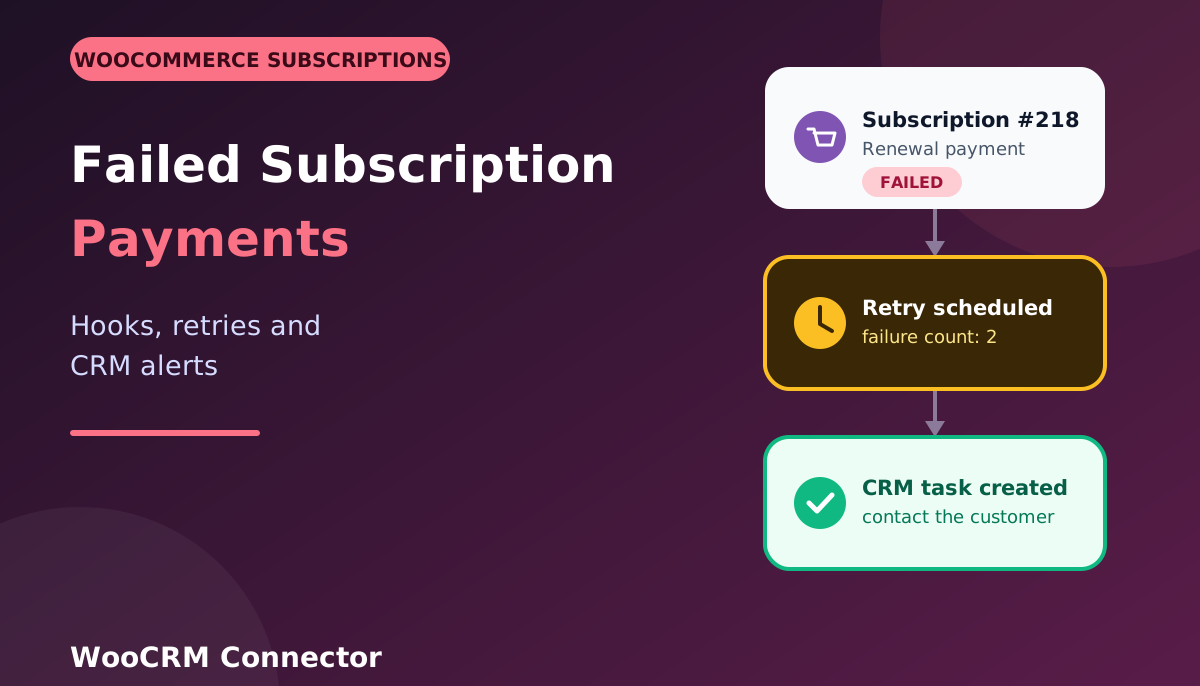
A failed subscription payment is quiet. Nobody clicks anything, nobody sees an error, and a customer who wanted to keep paying you simply stops being a customer. Card expiry, a bank decline, or an empty account is often the reason, and it is far more common than people cancelling on purpose. That kind of loss is sometimes called involuntary churn, and a good share of it can be recovered if someone notices in time.
WooCommerce Subscriptions has a built-in retry system and sends its own emails. What it does not do is tell your sales or support team, or your CRM. This guide shows how to use the plugin’s hooks to catch each stage of a failed payment (failed, recovered, and cancelled) and send those events to your CRM or automation tool, so a person can step in.
The short version: hook into woocommerce_subscription_renewal_payment_failed, count the failures on the subscription, queue a signed webhook to your CRM, and use two more hooks to report when the payment is recovered or the subscription is cancelled.
How a failed payment works in WooCommerce Subscriptions
When a renewal is due, Subscriptions asks the payment gateway to charge the saved payment method. If the charge fails, a few things happen:
- The subscription usually moves to On hold.
- The plugin fires the
woocommerce_subscription_payment_failedaction. According to the Subscriptions action reference, it passes the subscription and the status applied, which is on-hold by default. - For a failed renewal, it also fires
woocommerce_subscription_renewal_payment_failed. The same reference notes that this one is not triggered for failures on the initial order or on a switch order. - If the retry system is on, the plugin schedules another attempt using Action Scheduler.
The developer guide to the failed payment retry system explains that the retry manager is attached to the renewal failure hook, and that each new failed attempt triggers the same hook again. That fact matters for us: your code will run once per failed attempt, not once per subscription. We need to count attempts so the CRM is not flooded with duplicates.
The hooks you will use
| Hook | When it fires | Use it to |
|---|---|---|
woocommerce_subscription_renewal_payment_failed | A renewal payment fails (every attempt) | Count failures and alert the team |
woocommerce_subscription_payment_complete | A subscription payment succeeds | Detect that a failed payment was recovered |
woocommerce_subscription_status_cancelled | A subscription is cancelled | Report a lost customer |
Subscriptions has more than 250 actions in total, so treat this as a starting set. Always confirm the hook arguments for your version of the plugin before you ship.
What we are building
- Each failed renewal adds one to a counter stored on the subscription and writes a note on it.
- A background job sends a signed JSON event to a webhook URL (your CRM, Zapier, Make, n8n, or your own endpoint).
- When a later payment succeeds, a “recovered” event is sent and the counter is cleared.
- When the subscription is cancelled after failures, a “lost” event is sent.
Your CRM or automation then decides what to do: create a task, move a deal, tag the contact, or start a win-back sequence.
Step 1: Add your webhook settings
Put the endpoint and a shared secret in wp-config.php, not in a theme file:
define( 'WCN_CRM_WEBHOOK_URL', 'https://your-crm-or-automation-endpoint.example/hook' );
define( 'WCN_CRM_WEBHOOK_SECRET', 'a-long-random-string' );
Step 2: Catch the three events
Add this to a small custom plugin, a child theme, or a snippets plugin.
<?php
/**
 * Send failed, recovered and cancelled subscription payment events to a CRM webhook.
 */

// 1. A renewal payment failed. This fires on every failed attempt, including retries.
add_action( 'woocommerce_subscription_renewal_payment_failed', 'wcn_sub_renewal_failed', 10, 2 );

function wcn_sub_renewal_failed( $subscription, $last_order = null ) {

    $count = (int) $subscription->get_meta( '_wcn_failed_count' ) + 1;

    $subscription->update_meta_data( '_wcn_failed_count', $count );
    $subscription->save();

    $subscription->add_order_note( sprintf( 'Renewal payment failed (failure number %d). Event queued for the CRM.', $count ) );

    wcn_queue_sub_event( 'payment_failed', $subscription, $last_order, $count );
}

// 2. A payment succeeded. If there were earlier failures, report the recovery.
add_action( 'woocommerce_subscription_payment_complete', 'wcn_sub_payment_recovered', 10, 1 );

function wcn_sub_payment_recovered( $subscription ) {

    $count = (int) $subscription->get_meta( '_wcn_failed_count' );

    // A normal renewal with no earlier failure: nothing to report.
    if ( 0 === $count ) {
        return;
    }

    $subscription->delete_meta_data( '_wcn_failed_count' );
    $subscription->save();

    wcn_queue_sub_event( 'payment_recovered', $subscription, null, $count );
}

// 3. The subscription was cancelled. If it had failed payments, report a lost customer.
add_action( 'woocommerce_subscription_status_cancelled', 'wcn_sub_cancelled_after_failure', 10, 1 );

function wcn_sub_cancelled_after_failure( $subscription ) {

    $count = (int) $subscription->get_meta( '_wcn_failed_count' );

    if ( 0 === $count ) {
        return; // Cancelled for another reason.
    }

    wcn_queue_sub_event( 'cancelled_after_failure', $subscription, null, $count );
}
Step 3: Build the event and queue it
Do not call an outside service while a payment is being processed. Queue the work with Action Scheduler, which WooCommerce already includes, so a slow CRM never delays a renewal.
function wcn_queue_sub_event( $event, $subscription, $last_order, $failure_count ) {

    $payload = array(
        'event'              => $event,
        'subscription_id'    => $subscription->get_id(),
        'order_id'           => ( $last_order instanceof WC_Order ) ? $last_order->get_id() : 0,
        'customer_email'     => $subscription->get_billing_email(),
        'customer_name'      => trim( $subscription->get_billing_first_name() . ' ' . $subscription->get_billing_last_name() ),
        'amount'             => $subscription->get_total(),
        'currency'           => $subscription->get_currency(),
        'failure_count'      => (int) $failure_count,
        'subscription_status' => $subscription->get_status(),
        'account_url'        => $subscription->get_view_order_url(),
        'pay_url'            => ( $last_order instanceof WC_Order ) ? $last_order->get_checkout_payment_url() : '',
        'occurred_at'        => gmdate( 'c' ),
    );

    if ( function_exists( 'as_enqueue_async_action' ) ) {
        as_enqueue_async_action( 'wcn_send_sub_event', array( $payload, 1 ), 'wcn-subscriptions' );
    }
}
The pay_url is the link a customer can use to pay the failed renewal order. It is specific to that order, so treat it like a private link: send it only to the customer, never post it in a public channel.
Step 4: Send it, signed, with retries
This job posts the event as JSON. A signature header lets the receiving system check that the message really came from your store. If the call fails, it retries up to three times.
add_action( 'wcn_send_sub_event', 'wcn_send_sub_event', 10, 2 );

function wcn_send_sub_event( $payload, $attempt = 1 ) {

    if ( ! defined( 'WCN_CRM_WEBHOOK_URL' ) ) {
        return;
    }

    $body    = wp_json_encode( $payload );
    $headers = array( 'Content-Type' => 'application/json' );

    if ( defined( 'WCN_CRM_WEBHOOK_SECRET' ) ) {
        $headers['X-WCN-Signature'] = hash_hmac( 'sha256', $body, WCN_CRM_WEBHOOK_SECRET );
    }

    $response = wp_remote_post( WCN_CRM_WEBHOOK_URL, array(
        'timeout' => 15,
        'headers' => $headers,
        'body'    => $body,
    ) );

    $code = is_wp_error( $response ) ? 0 : (int) wp_remote_retrieve_response_code( $response );

    // Success.
    if ( $code >= 200 && $code < 300 ) {
        return;
    }

    // Try again later, up to three attempts in total.
    if ( $attempt < 3 ) {
        as_schedule_single_action(
            time() + ( 10 * MINUTE_IN_SECONDS * $attempt ),
            'wcn_send_sub_event',
            array( $payload, $attempt + 1 ),
            'wcn-subscriptions'
        );
    } else {
        error_log( 'Subscription event ' . $payload['event'] . ' for subscription ' . $payload['subscription_id'] . ' could not be delivered.' );
    }
}
On the receiving side, recompute the HMAC of the raw request body with the same secret and compare it to the X-WCN-Signature header before you trust the message. Most automation tools let you do this in a code step. If yours does not, at least keep the webhook URL private.
Step 5: Decide what the CRM does with each event
| Event | Good CRM action |
|---|---|
payment_failed (failure 1) | Create a task for support: “Check failed payment”. Tag the contact “Payment issue”. Keep the priority low, because the retry system may fix it. |
payment_failed (failure 2 or more) | Raise the task priority. Send a personal email or message from a person, using the pay_url. |
payment_recovered | Close the task, remove the tag, and move any open deal back to active. |
cancelled_after_failure | Mark the customer as lost to failed payment, and start a win-back sequence. Track these separately from customers who chose to cancel. |
The failure_count field is what makes this work. It lets your CRM treat the first failure calmly and the third one urgently.
If you prefer ready-made connections instead of writing this logic yourself, see our WooCommerce CRM connectors. For a deeper look at how webhooks work, read our guide on sending WooCommerce order data to a webhook.
Check your retry settings first
The hooks above report what happens. The built-in retry system decides how many times WooCommerce tries again, and when. Check the retry options in your WooCommerce Subscriptions settings, and review the rules and the emails your customers receive. The default retry rules and the plugin’s own retry emails are documented in the developer guide linked above. Our CRM alerts should add to those emails, not repeat them: your customer should get a clear email from the plugin, and your team should get the alert.
Test it without waiting for a real failure
Do not wait days for a renewal. The official retry testing guide describes how to trigger a renewal immediately:
- On a staging site, create a test subscription and set its payment method to one that will fail (a gateway’s test decline card, for example).
- Go to WooCommerce → Status → Scheduled Actions → Pending and search for the subscription number.
- Find the
woocommerce_scheduled_subscription_paymentaction and click Run. - Open the subscription. It should be On hold, with the note “Renewal payment failed (failure number 1)”.
- Look in Scheduled Actions for
wcn_send_sub_event, and check that your CRM or webhook tool received the event. - Run the retry from Scheduled Actions again to produce a second failure and confirm the count goes up.
- Change the subscription to a working payment method, let a retry succeed, and confirm that the
payment_recoveredevent arrives and the counter clears.
Troubleshooting
| Problem | What to check |
|---|---|
| No note appears on the subscription | Your code is not loaded, or the failure happened on the first (initial) order. The renewal hook does not fire for initial or switch orders. |
| The counter always shows 1 | The meta is not saved. Make sure you call save() after update_meta_data(). |
| Events arrive twice | A retry or a duplicate hook call. Make your CRM idempotent: use subscription_id, event, and failure_count together as a unique key. |
| No “recovered” event | Check that the counter exists before the successful payment, and that the payment-complete hook fires for your gateway. |
| Webhook is not received | Look at Scheduled Actions for failed jobs, check the endpoint URL, and confirm your host allows outgoing requests. |
| Hook arguments differ | Your Subscriptions version may pass different arguments. Check the action reference and log the arguments while testing. |
Good habits for recovering failed payments
- Act in the first day. Many failures are fixed when the customer simply updates a card.
- Make fixing it easy. Link straight to the page where they can pay or change their payment method.
- Use a human tone. “Your payment did not go through” works better than a legal-sounding warning.
- Do not spam. Match your own messages to the plugin’s retry emails.
- Measure it. Track how many failures recover, and how many end in cancellation, so you can improve your process.
- Mind privacy. You are sharing customer data with your CRM. Send only what the team needs, and cover it in your privacy policy.
Related guides
- Offer the right shipping on renewals with free shipping for WooCommerce Subscriptions.
- Reach customers where they read messages with WooCommerce WhatsApp order notifications.
- Keep customer records in sync by syncing WooCommerce orders with your CRM automatically.
- Build the same idea as a no-code flow with n8n and WooCommerce AI automation workflows.
- Find more copy-paste code in our free WooCommerce snippets library and the Hook and Filters WooCommerce Bundle.
Frequently asked questions
What happens when a WooCommerce subscription payment fails?
The subscription normally goes on hold, WooCommerce Subscriptions fires its payment failed hooks, and if the retry system is on, it schedules another attempt. The customer may also receive retry emails from the plugin.
Which hook runs when a renewal payment fails?
woocommerce_subscription_renewal_payment_failed. It is not triggered for failed payments on the initial order or on a switch order. For those, use woocommerce_subscription_payment_failed.
Does the hook run once or on every retry?
On every failed attempt. Count the failures yourself, as this guide does, so you can tell a first failure from a third one.
How can I send failed payment alerts to my CRM?
Hook into the failure event, build a small JSON payload, and post it to your CRM or an automation tool in a background job. Use the failure count to set the task priority.
How do I test failed subscription payments?
Use a staging site, a payment method that declines, and run the woocommerce_scheduled_subscription_payment action from the Scheduled Actions screen to trigger the renewal immediately.
Should I email the customer from my own code?
Usually not. The plugin sends its own retry emails. Use your code to alert your team and your CRM, and let a person reach out if the payment is not recovered.
Is this compatible with High-Performance Order Storage?
The code reads and saves data through the subscription object, which is the supported way to work with HPOS. Test on staging with your own setup.
Wrap-up
Failed payments are a sales problem that looks like a technical one. Three hooks, a counter, and a signed webhook give your team the information it needs to act while the customer can still be won back. Start on staging, test the whole path from failure to recovery to cancellation, and let your CRM turn each event into a clear next step.