

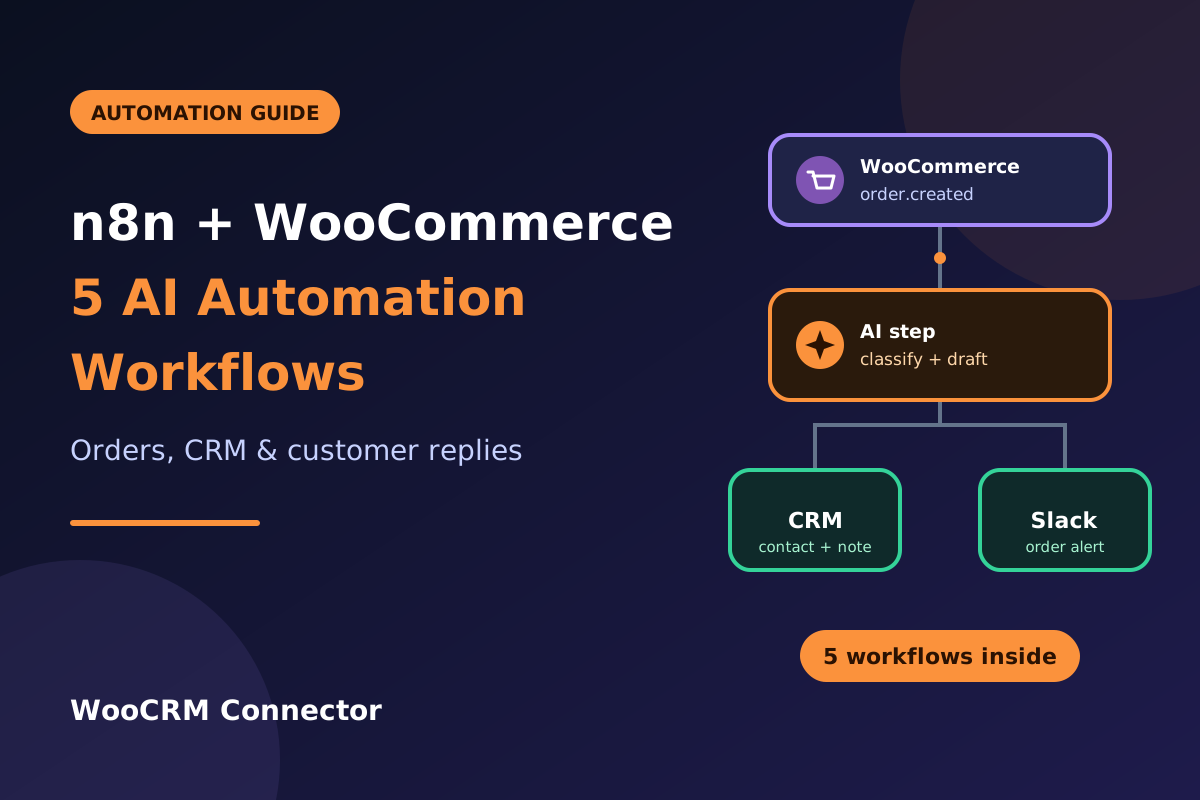
A small WooCommerce store can easily lose an hour a day to jobs that follow the same pattern: an order comes in, someone copies it to the CRM, someone reads the customer’s note, someone answers “where is my order?” for the fourth time that week. Each task is small, and none of them needs a person to think hard. That makes them good candidates for automation, and for a bit of AI on top.
This guide walks through five n8n WooCommerce workflows that add an AI step where it actually helps: summarising orders, creating CRM records, drafting support replies, following up on failed orders, and sending a weekly sales digest. You will see which nodes to use, what to put in the prompts, and where to keep a human in the loop.
Short version: n8n’s WooCommerce Trigger node listens for store events through WooCommerce webhooks. You connect it to an AI node (a Basic LLM Chain, a Text Classifier, or an Agent), and then to the tool that does the work: your CRM, Slack, email, or a spreadsheet.
What you need before you start
- A WooCommerce store on HTTPS, with permalinks set to anything other than Plain. n8n’s own documentation lists this as a prerequisite for the WooCommerce credentials.
- An n8n instance, either n8n Cloud or one you host yourself. It has to be reachable from the internet, because WooCommerce calls n8n when an event happens.
- An API key for an AI model (OpenAI, Anthropic, or any chat model n8n supports). AI calls are billed by the provider, so keep prompts short.
- Access to the tools you want to connect, such as your CRM and Slack or email.
Connect n8n to WooCommerce
Do this once. Every workflow below reuses the same credential.
- In WordPress, go to WooCommerce → Settings → Advanced → REST API → Add key.
- Give it a clear description, such as “n8n”, and choose Read/Write permissions.
- Copy the Consumer Key and Consumer Secret. The secret is shown only once.
- In n8n, create a new WooCommerce credential and paste both values. In the WooCommerce URL field, enter your site address, including
https://.
If you see a “Consumer key is missing” error, the cause is usually that your server cannot read the Authorization header. The n8n WooCommerce credentials page suggests turning on Include Credentials in Query to send the keys as query parameters instead. For the details of how keys work on the store side, see the WooCommerce REST API guide.
It also helps to create a separate WordPress user for the integration instead of using your admin account, so you can limit and revoke access later.
Know your trigger: what the WooCommerce Trigger can listen for
The WooCommerce Trigger node supports twelve events: created, updated, and deleted for each of coupons, customers, orders, and products. When you activate a workflow, n8n registers a webhook in your store. You choose the event, for example order.created.
Two things trip people up:
- Activate the workflow. Testing inside the editor is not the same as a live workflow. Save it and switch the Activate toggle on.
- Events can fire earlier or more often than you expect.
order.createdcan fire when the order is created, which with some payment gateways is before payment completes.order.updatedfires on any change to the order, not only a status change. Add an IF node that checks the orderstatusright after the trigger.
Workflow 1: AI order alert for your team
Goal: post a short, useful order summary to Slack, and flag anything unusual.
Nodes: WooCommerce Trigger (order.created) → IF (status is processing) → Edit Fields → Basic LLM Chain → Slack.
The Edit Fields node picks only the data the AI needs. Sending the full order to a model includes the customer’s email, phone, and address, which it does not need for this job. A lean set of fields looks like this:
Name:    {{ $json.billing.first_name }}
Total:   {{ $json.total }} {{ $json.currency }}
Items:   {{ $json.line_items.map(i => i.quantity + ' x ' + i.name).join(', ') }}
Note:    {{ $json.customer_note }}
Country: {{ $json.shipping.country }}
Then give the Basic LLM Chain a prompt like this:
You write short internal order alerts for a small online store.
Write two sentences: what was bought and the total, then anything
unusual (a customer note, a very large quantity, or a shipping
country we rarely ship to). If nothing is unusual, say "Nothing unusual."
Do not invent details that are not in the data.
The Basic LLM Chain needs a chat model connected to it. Add your model of choice as a sub-node. The result is a Slack message your team can read in five seconds instead of opening the order.
Workflow 2: Create CRM contacts and notes from orders
Goal: every paid order creates or updates a CRM contact, with a readable note on the record.
Nodes: WooCommerce Trigger → IF (paid status) → your CRM node (create or update contact) → Basic LLM Chain (write the note) → CRM node (add note or deal).
- Use the CRM’s own n8n node if one exists for it, or the HTTP Request node with the CRM’s API if not.
- Map the contact fields from the order:
billing.first_name,billing.last_name,billing.email, andbilling.phone. - Use the email address as the key so a returning customer updates the existing contact instead of creating a duplicate.
- Ask the AI node for a one-paragraph note: what was bought, how much was spent, and whether it is the customer’s first order. Keep the instruction to “summarise only what is in the data”.
A fair warning: a plain order-to-CRM sync does not need AI at all. Use the AI step only for the extra text, such as a note or a lead tag. If all you need is clean, reliable syncing, our guide on syncing WooCommerce orders with your CRM automatically and our WooCommerce CRM connectors handle it without running a separate workflow server.
Workflow 3: Draft replies to “Where is my order?” emails
Goal: read an incoming support email, look up the real order, and prepare a reply for a person to approve.
Nodes: Email trigger (IMAP or Gmail) → Text Classifier → Information Extractor (order number) → WooCommerce node (get the order) → Basic LLM Chain (draft the reply) → save as a draft or send to Slack for review.
- The Text Classifier sorts emails into categories you define, such as Order status, Refund, and Other. Each category has a name and a description, and the description matters, so write it clearly. Turn on the option to send unmatched items to an “Other” branch, so nothing is silently dropped.
- Only the Order status branch continues. An Information Extractor node pulls the order number out of the email text.
- A WooCommerce node (resource: Order, operation: Get) fetches that order by ID.
- The Basic LLM Chain writes a reply using the real status and items.
A starting prompt:
You are a support assistant for an online store. Write a short, polite
reply to the customer using ONLY the order details provided.
- State the current order status in plain words.
- If the status is "completed", say it has been marked as shipped or
  delivered and offer to help if it has not arrived.
- Never promise a delivery date, refund, or discount.
- If the order details do not answer the question, say a team member
  will follow up.
Sign off as "The Support Team".
Do not let this send automatically. Send the draft to a Slack channel or save it as an email draft, and let a person approve it. An AI model can misread a message, and a wrong answer about a refund or a delivery date costs more than the time you saved.
Workflow 4: Follow up on failed or cancelled orders
Goal: a short, personal email an hour after an order fails or is cancelled, so the customer can try again.
Nodes: WooCommerce Trigger (order.updated) → IF (status is failed or cancelled) → Wait (for example, one hour) → WooCommerce node (get the order again) → IF (still not paid) → Basic LLM Chain → Email node.
The second check is the important part. After the wait, fetch the order again and confirm it is still failed or cancelled. Otherwise you may email a customer who has already paid by another method.
Write a friendly three-sentence email to a customer whose payment
for the items below did not go through. Do not blame the customer.
Mention one item by name and say we saved their cart. Do not offer
a discount. Items: {{ $json.line_items.map(i => i.name).join(', ') }}
Before you switch this on, check the rules for marketing email in your region and make sure you have a lawful basis to contact the customer. A transactional message about a payment problem is generally treated differently from a promotion, but get advice if you are not sure.
Workflow 5: A weekly AI sales digest
Goal: an email or Slack message every Monday with last week’s numbers in plain language.
Nodes: Schedule Trigger → WooCommerce node (get many orders, filtered to the last seven days) → Code or Summarize node (total revenue, order count, top products) → Basic LLM Chain → Email or Slack.
Do the arithmetic in a Code or Summarize node, not in the AI model. Models can make mistakes with sums. Compute totals, order counts, and top products with normal logic, then pass those finished numbers to the AI and ask it only to write the summary.
Write a five-sentence weekly sales summary for the store owner.
Use only the numbers provided. Mention revenue, number of orders,
the best-selling product, and the biggest change from last week.
Do not guess at reasons.
Summary of the five workflows
| Workflow | Trigger | AI node | Output |
|---|---|---|---|
| 1. Order alert | order.created | Basic LLM Chain | Slack message |
| 2. CRM contact and note | order.created | Basic LLM Chain | CRM record |
| 3. Support reply draft | Incoming email | Text Classifier + LLM Chain | Draft for review |
| 4. Failed order follow-up | order.updated | Basic LLM Chain | Email to the customer |
| 5. Weekly digest | Schedule | Basic LLM Chain | Email or Slack |
Guardrails that keep this safe
- Send the minimum data. Pick only the fields the AI needs. Leave out phone numbers, full addresses, and payment details.
- Keep a person in the loop for anything customer-facing. Drafts and approvals first. Full automation only after weeks of checking the output.
- Tell the model what not to do. “Never promise a refund” and “use only the data provided” in the prompt prevent most bad answers.
- Watch costs. Each AI call is billed. Filter early with IF nodes so only the orders that matter reach the model.
- Test with real edge cases. Try an order with no note, a very long note, a different language, and a refunded order.
- Do not paste secrets into prompts or workflow notes.
Troubleshooting
| Problem | What to check |
|---|---|
| The trigger never fires | The workflow is not activated, n8n is not reachable from your site, or the webhook was disabled after failed deliveries. Check WooCommerce → Settings → Advanced → Webhooks. |
| “Consumer key is missing” | Turn on Include Credentials in Query in the n8n credential. |
| 401 or permission errors | The API key needs Read/Write permission, and the user it belongs to needs the right role. |
| Duplicate runs for one order | order.updated fires on every change. Add an IF node on status, and store processed order IDs so you do not repeat the same action. |
| Fires before payment | Check status after order.created, or react to order.updated instead. |
| AI output is inconsistent | Shorten the prompt, give an example of the output you want, and use the Text Classifier for any decision with fixed categories. |
When n8n is not the right tool
n8n is flexible, but you are running and monitoring a workflow server. For one fixed job, such as sending every order to your CRM, a dedicated plugin is simpler and has fewer moving parts. For messages to customers, our guide to WooCommerce WhatsApp order notifications shows the same idea in plain PHP, with no external service. And if you only need an order to trigger another service, you may only need our walkthrough on sending WooCommerce order data to a webhook. Use n8n when you want branching logic, AI steps, or several tools connected in one flow.
Frequently asked questions
How do I connect n8n to WooCommerce?
Create a Read/Write REST API key in WooCommerce, then add a WooCommerce credential in n8n with the consumer key, consumer secret, and your store URL. Set your permalinks to something other than Plain first.
Which WooCommerce events can n8n react to?
The WooCommerce Trigger node covers created, updated, and deleted events for coupons, customers, orders, and products.
Can n8n send WooCommerce orders to a CRM?
Yes. Use the WooCommerce Trigger, then the CRM’s n8n node or the HTTP Request node to create or update a contact. Use the email address as the unique key to avoid duplicates.
Do I need AI in every workflow?
No. Use AI for jobs that involve language, such as summaries, classification, and draft replies. Use normal nodes for calculations and data mapping.
Is it safe to send customer data to an AI model?
Only send what the task needs, and read your AI provider’s data terms and your own privacy policy. Leave out contact details and payment information where you can.
Should AI replies go to customers automatically?
Start with drafts that a person approves. Move to automatic sending only for low-risk messages after you have reviewed a good number of outputs.
Why does my WooCommerce Trigger run more than once?
An order.updated event fires on every change to an order. Filter by status and keep a record of orders you have already handled.
Wrap-up
You do not need to automate everything at once. Start with Workflow 1, because it is read-only and low risk. Once it runs cleanly for a week, add the CRM step, then the drafted replies. Keep the AI focused on language, keep the maths in normal nodes, and keep a person in charge of anything a customer will read. For more store automation code, see our free WooCommerce snippets library, the Hook and Filters WooCommerce Bundle, and our CRM connectors.