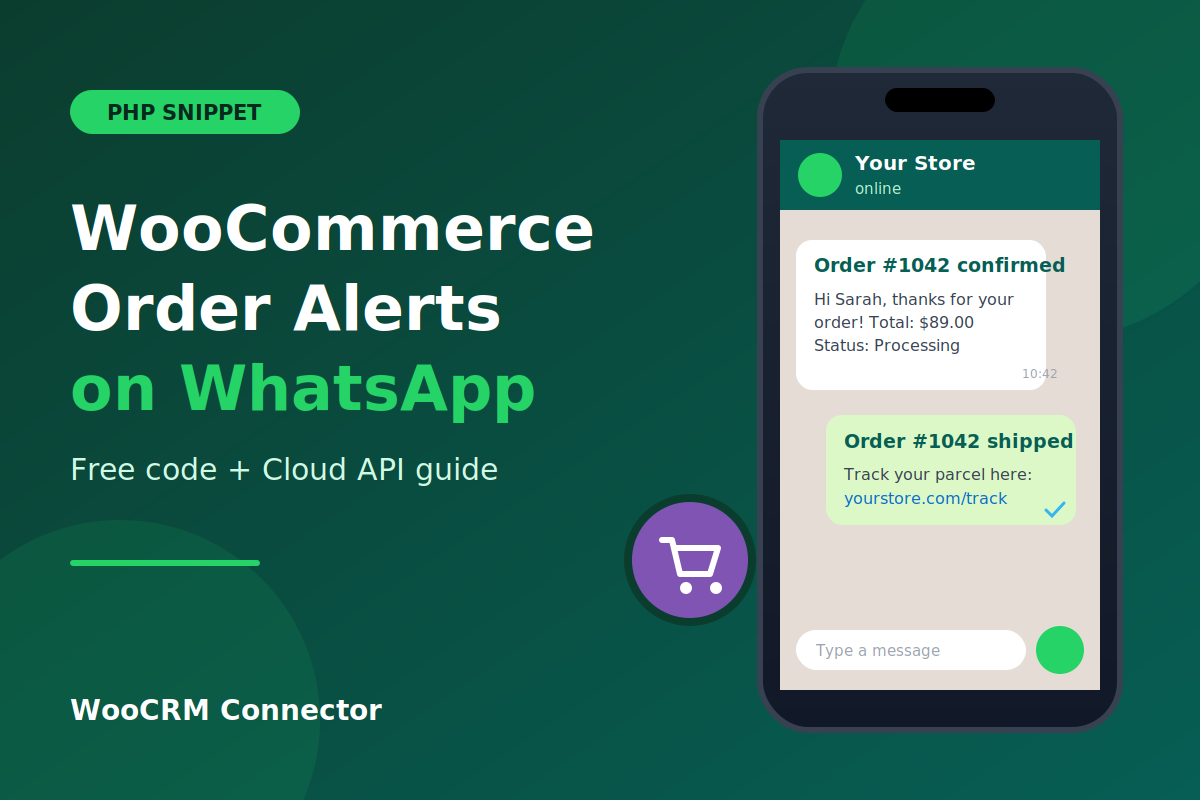
Email is where order updates go to be ignored. A customer places an order, and the confirmation lands between a newsletter and a promo code. A WooCommerce WhatsApp order notification is different: people open WhatsApp all day, and a short message with an order number and a status gets read within minutes.
This guide shows you how to build a WooCommerce WhatsApp order notification with a PHP snippet and the official WhatsApp Cloud API from Meta. There is no third-party plugin and no monthly subscription for the plugin side. You write the code once, and WooCommerce sends a message every time an order moves to a status you choose.
The short version: hook into woocommerce_order_status_changed, queue the job with Action Scheduler, and send an approved message template to the customer’s billing phone through the Cloud API. The full code is below.
What you need before you start
- A WooCommerce store on a current version of WordPress, with PHP 8.1 or newer.
- A Meta developer account and a Meta Business account.
- A WhatsApp Business phone number added in the WhatsApp product inside your Meta app. A number already registered on a regular WhatsApp app must be removed from it first.
- Access to
wp-config.phpand to your theme’sfunctions.phpfile (or a snippets plugin). - A staging site if you have one. Test there first.
Step 1: Set up the WhatsApp Cloud API
- Go to developers.facebook.com, create an app, and choose the Business type.
- Add the WhatsApp product to the app.
- Open WhatsApp → API Setup. Note down two values: the Phone number ID and the WhatsApp Business Account ID. The Phone number ID is not the phone number itself.
- Meta gives you a temporary access token on that page. It expires after about 24 hours, so use it only to test.
- For production, create a System User in Business Settings, assign it your app and WhatsApp account, and generate a token that does not expire. Give it the
whatsapp_business_messagingandwhatsapp_business_managementpermissions.
Until your business is verified and your number is live, Meta’s test number only delivers to phone numbers you add to the allowed recipients list. If your first message fails, that list is the first place to look.
Step 2: Create and approve a message template
WhatsApp does not let a business start a conversation with free text. The first message must use a template that Meta has approved. For order updates, one flexible template is enough.
In WhatsApp Manager → Message templates, create a template like this:
- Name:
order_status_update - Category: Utility
- Language: English (US), code
en_US - Body:
Hi {{1}}, your order #{{2}} is now {{3}}. Thank you for shopping with us. Reply to this message if you need any help.The three variables map to the customer’s first name, the order number, and the status label. Approval usually takes a few minutes to a few hours. Keep the wording factual. Templates that read like ads get rejected or reclassified as Marketing, which costs more per message.
Step 3: Store your credentials safely
Do not paste an access token into functions.php. Anyone with access to your theme files or a backup could read it. Put the values in wp-config.php, above the line that says That’s all, stop editing:
define( 'WCN_WA_TOKEN', 'your-permanent-access-token' );
define( 'WCN_WA_PHONE_ID', 'your-phone-number-id' );
define( 'WCN_WA_TEMPLATE', 'order_status_update' );
define( 'WCN_WA_LANG', 'en_US' );
Step 4: Add the PHP snippet
Add the code below to a small custom plugin, a child theme’s functions.php, or a snippets plugin. It has three parts. Paste them together in this order.
Part 1: Settings and phone number formatting
<?php
/**
 * WooCommerce WhatsApp order notifications (Cloud API).
 */

// Which order statuses trigger a message. Edit or filter as needed.
function wcn_wa_statuses() {
    return apply_filters( 'wcn_wa_statuses', array( 'processing', 'completed', 'cancelled' ) );
}

// Convert a billing phone into the digits-only international format WhatsApp expects.
function wcn_wa_format_phone( $phone, $country ) {
    $phone  = trim( (string) $phone );
    $digits = preg_replace( '/\D+/', '', $phone );

    if ( '' === $digits ) {
        return '';
    }

    // Already international: "+91..." or "00 91...".
    if ( 0 === strpos( $phone, '+' ) ) {
        return $digits;
    }
    if ( 0 === strpos( $digits, '00' ) ) {
        return substr( $digits, 2 );
    }

    $code = WC()->countries->get_country_calling_code( $country );
    if ( is_array( $code ) ) {
        $code = reset( $code );
    }
    $code = preg_replace( '/\D+/', '', (string) $code );

    $digits = ltrim( $digits, '0' );

    // Add the country code unless the number already starts with it.
    if ( $code && 0 !== strpos( $digits, $code ) ) {
        $digits = $code . $digits;
    }

    return $digits;
}
Part 2: Queue the message when the status changes
Calling an external API in the middle of checkout slows the page down, and a failed request can leave the customer staring at a spinner. WooCommerce ships with Action Scheduler, so we use it to push the call into a background job.
add_action( 'woocommerce_order_status_changed', 'wcn_wa_queue_message', 10, 4 );

function wcn_wa_queue_message( $order_id, $old_status, $new_status, $order ) {
    if ( ! in_array( $new_status, wcn_wa_statuses(), true ) ) {
        return;
    }

    // Do not send the same status message twice for one order.
    if ( $order->get_meta( '_wcn_wa_sent_' . $new_status ) ) {
        return;
    }

    if ( function_exists( 'as_enqueue_async_action' ) ) {
        as_enqueue_async_action( 'wcn_wa_send_message', array( $order_id, $new_status ), 'wcn-whatsapp' );
    } else {
        wcn_wa_send_message( $order_id, $new_status );
    }
}
Part 3: Send the template message
add_action( 'wcn_wa_send_message', 'wcn_wa_send_message', 10, 2 );

function wcn_wa_send_message( $order_id, $status ) {
    if ( ! defined( 'WCN_WA_TOKEN' ) || ! defined( 'WCN_WA_PHONE_ID' ) ) {
        return;
    }

    $order = wc_get_order( $order_id );
    if ( ! $order ) {
        return;
    }

    if ( $order->get_meta( '_wcn_wa_sent_' . $status ) ) {
        return;
    }

    $to = wcn_wa_format_phone( $order->get_billing_phone(), $order->get_billing_country() );
    if ( '' === $to ) {
        $order->add_order_note( 'WhatsApp not sent: no usable billing phone number.' );
        return;
    }

    // Template variables cannot contain line breaks, tabs or long runs of spaces.
    $clean = function ( $text ) {
        $text = wp_strip_all_tags( (string) $text );
        return trim( preg_replace( '/\s+/', ' ', $text ) );
    };

    $name = $clean( $order->get_billing_first_name() );
    if ( '' === $name ) {
        $name = 'there';
    }

    $template = defined( 'WCN_WA_TEMPLATE' ) ? WCN_WA_TEMPLATE : 'order_status_update';
    $lang     = defined( 'WCN_WA_LANG' ) ? WCN_WA_LANG : 'en_US';

    $payload = array(
        'messaging_product' => 'whatsapp',
        'to'                => $to,
        'type'              => 'template',
        'template'          => array(
            'name'       => $template,
            'language'   => array( 'code' => $lang ),
            'components' => array(
                array(
                    'type'       => 'body',
                    'parameters' => array(
                        array( 'type' => 'text', 'text' => $name ),
                        array( 'type' => 'text', 'text' => $clean( $order->get_order_number() ) ),
                        array( 'type' => 'text', 'text' => $clean( wc_get_order_status_name( $status ) ) ),
                    ),
                ),
            ),
        ),
    );

    // Check Meta's docs for the current Graph API version and update this if needed.
    $url = 'https://graph.facebook.com/v21.0/' . rawurlencode( WCN_WA_PHONE_ID ) . '/messages';

    $response = wp_remote_post( $url, array(
        'timeout' => 15,
        'headers' => array(
            'Authorization' => 'Bearer ' . WCN_WA_TOKEN,
            'Content-Type'  => 'application/json',
        ),
        'body'    => wp_json_encode( $payload ),
    ) );

    if ( is_wp_error( $response ) ) {
        $order->add_order_note( 'WhatsApp request failed: ' . $response->get_error_message() );
        return;
    }

    $code = wp_remote_retrieve_response_code( $response );
    $data = json_decode( wp_remote_retrieve_body( $response ), true );

    if ( 200 === $code && ! empty( $data['messages'][0]['id'] ) ) {
        $order->update_meta_data( '_wcn_wa_sent_' . $status, $data['messages'][0]['id'] );
        $order->add_order_note( 'WhatsApp message sent for status: ' . wc_get_order_status_name( $status ) . '.' );
        $order->save();
    } else {
        $error = isset( $data['error']['message'] ) ? $data['error']['message'] : 'Unknown error (HTTP ' . $code . ')';
        $order->add_order_note( 'WhatsApp message failed: ' . $error );
    }
}
How the code works
- It uses the order object’s own methods (
get_meta,update_meta_data,save), so it works whether your store uses HPOS (High-Performance Order Storage) or the older post-based storage. - It records the message ID in order meta. That stops duplicates if an admin flips the status back and forth.
- It writes the result to the order notes. When a customer says they got nothing, open the order and the reason is usually right there.
- It reads the billing phone. If your checkout makes that field optional, some orders will be skipped. Consider making it required.
Step 5: Test it
- Add your own phone number to the allowed recipients list in the Meta dashboard (test numbers only).
- Place a test order with your number as the billing phone, including the country code.
- Change the order status to Processing in the admin.
- Open WooCommerce → Status → Scheduled Actions and look for
wcn_wa_send_message. It should show as complete. - Check the order notes for the success or error line.
Common errors and how to fix them
| Error | Likely cause | Fix |
|---|---|---|
| Error 190 / invalid OAuth token | The temporary token expired | Generate a System User token that does not expire |
| 131030 – recipient not in allowed list | You are using the test number | Add the recipient in the API Setup page, or move to a live number |
| 132001 – template does not exist | Wrong template name or language code | Match WCN_WA_TEMPLATE and WCN_WA_LANG to WhatsApp Manager exactly |
| 132000 – parameter mismatch | The number of variables differs from the template | Send exactly as many parameters as the template has {{}} placeholders |
| Nothing happens, no note | Status not in the list, or Action Scheduler is stuck | Check wcn_wa_statuses() and the Scheduled Actions screen |
Consent, cost and limits
Get opt-in first. WhatsApp’s business policy expects you to have the customer’s permission to message them on WhatsApp. A simple checkbox at checkout (“Send my order updates on WhatsApp”) is the usual approach. You can add the checkbox and then check its value inside wcn_wa_send_message() before sending. Sending to people who did not agree is the quickest way to get your number flagged.
Watch the cost. Meta charges per delivered template message, and the price depends on the message category and the recipient’s country. Prices and free allowances have changed before, so check Meta’s current pricing page rather than trusting a number in a blog post, including this one.
Mind the quality rating. If many recipients block or report your number, Meta lowers your messaging limits. Send only messages that customers expect.
Take it further
- Different messages per status. Store a template name per status in an array and choose the right one inside the send function.
- Add a tracking link. Add a button component to the template and pass the tracking URL as a parameter.
- Send the same event to other tools. If you also want order data in a spreadsheet or automation platform, see our guide to sending WooCommerce order data to a webhook.
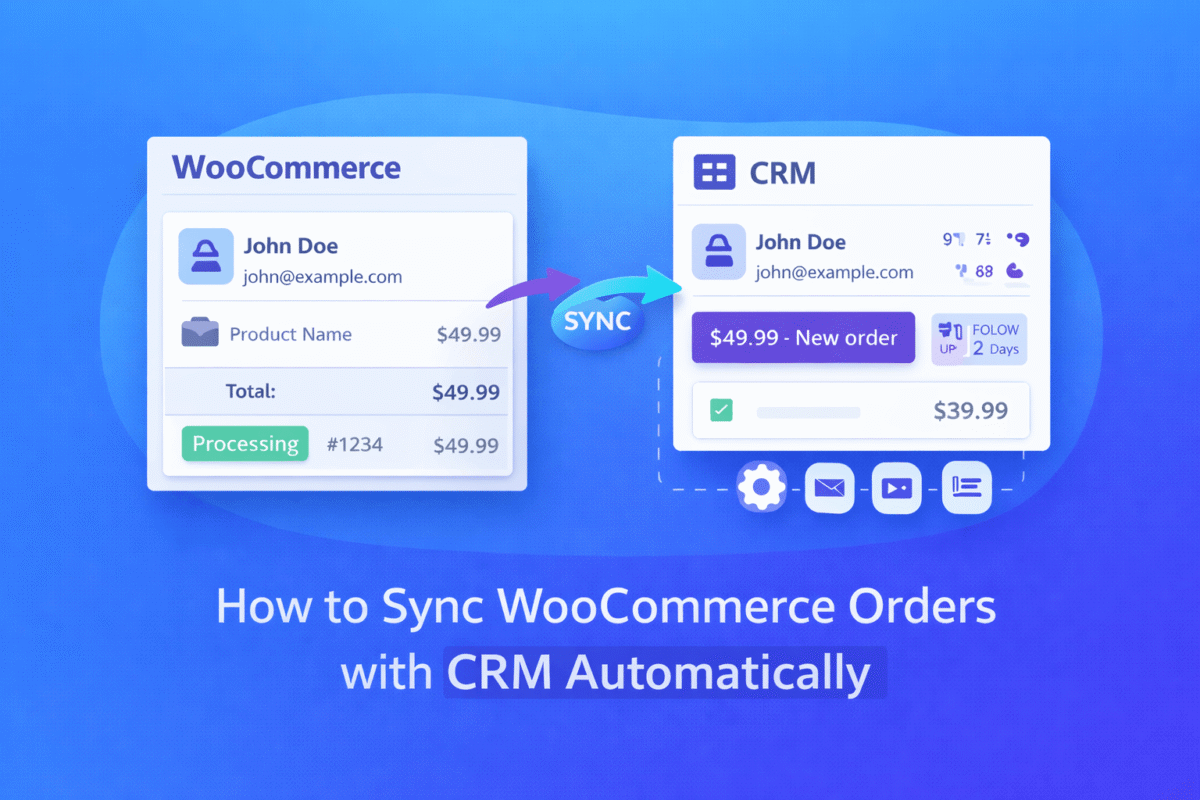
- Keep customer records in one place. WhatsApp tells the customer what happened, but your sales team needs the order in a CRM. Read how to sync WooCommerce orders with your CRM automatically.
- Handle refunds cleanly. Pair a “refunded” status message with the refund request button on the My Account page so customers know where their request stands.
Frequently asked questions
Can I send WooCommerce WhatsApp notifications without a plugin?
Yes. The WhatsApp Cloud API is a plain HTTPS API, and WooCommerce exposes hooks for every order status change, so a short PHP snippet is enough. A plugin mostly adds a settings screen and a template editor on top of the same calls.
Is the WhatsApp Cloud API free?
Creating the app and using the API is free, but delivered template messages are billed by Meta, and the rate depends on the category and country. Check Meta’s pricing page before you go live.
Do I need a template for every order status?
No. One template with a status variable, like the one in this guide, covers every status. Create separate templates only if you want different wording or buttons per status.
Why did the message send but the customer did not receive it?
The most common causes are a phone number with the wrong country code, a customer who has not opted in, or a number that is not on WhatsApp. Check the delivery status in WhatsApp Manager and look at the order note the snippet wrote.
Will this slow down my checkout?
Not when Action Scheduler is available. The API request runs in a background job after the order is saved, so the customer never waits for it.
Does this work with WooCommerce block checkout?
The notification code does not depend on the checkout type, because it runs when the order status changes. Only a consent checkbox would need different code depending on whether you use the classic or block checkout.
Wrap-up
With one approved template, four lines in wp-config.php and about 100 lines of PHP, your store can message customers on the app they actually check. Start with the Processing and Completed statuses, watch the order notes for a week, and expand from there.
Want your orders to reach a CRM as well as the customer’s phone? Browse our WooCommerce CRM connectors or the Hook and Filters WooCommerce Bundle, and find more copy-paste code in our free WooCommerce snippets library.